Did you know that GitHub Actions supports the notion of the environment?
Environments are a great option to manage and tack provisioning and deployment workflow in GitHub Action. You can create any number of environments for a given repo/project. You could be dev, staging, and production for instance. But you are not restrained to those options. For my experiments, I like to configure an aws and digitalocean environment.
The environment in GitHub action brings three advantages:
- Define environment-specific variable
- Create Protection rules to prevent unauthorized deployments
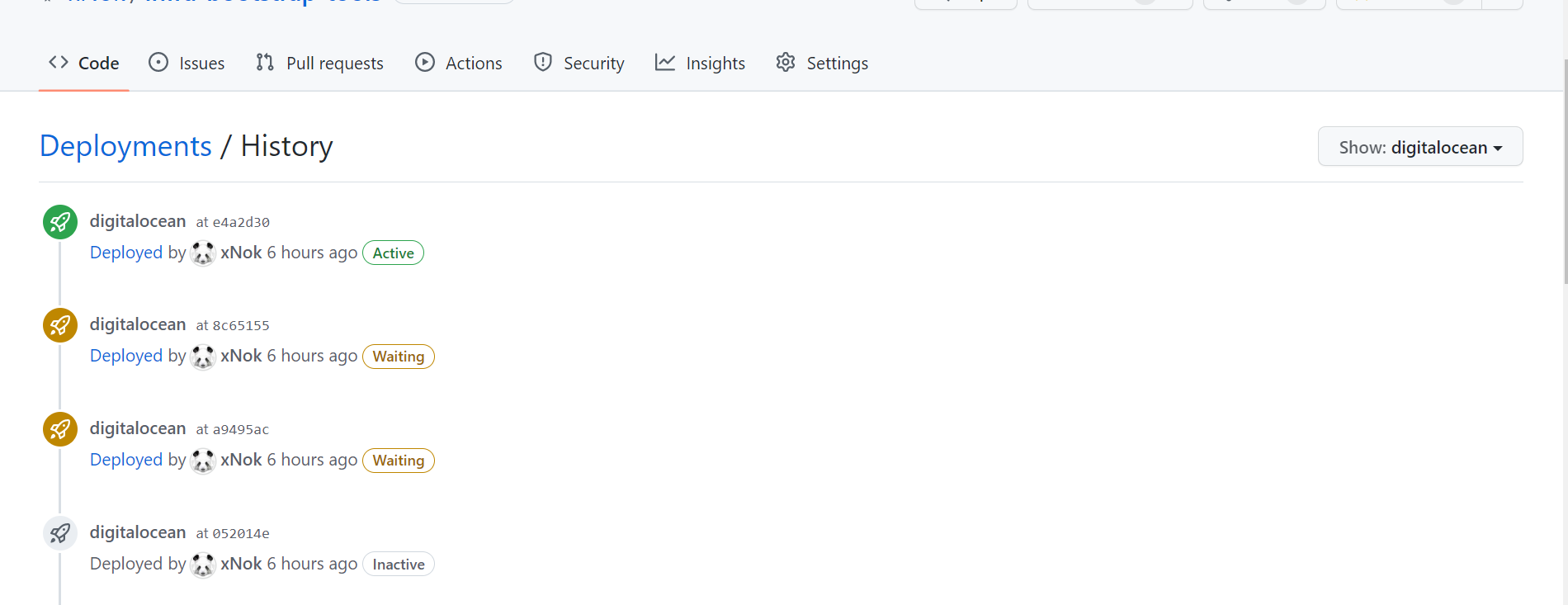
- Keep a history of all your deployments easily accessible from the repository main page
Here is a diagram to give you an idea of how everything flows:
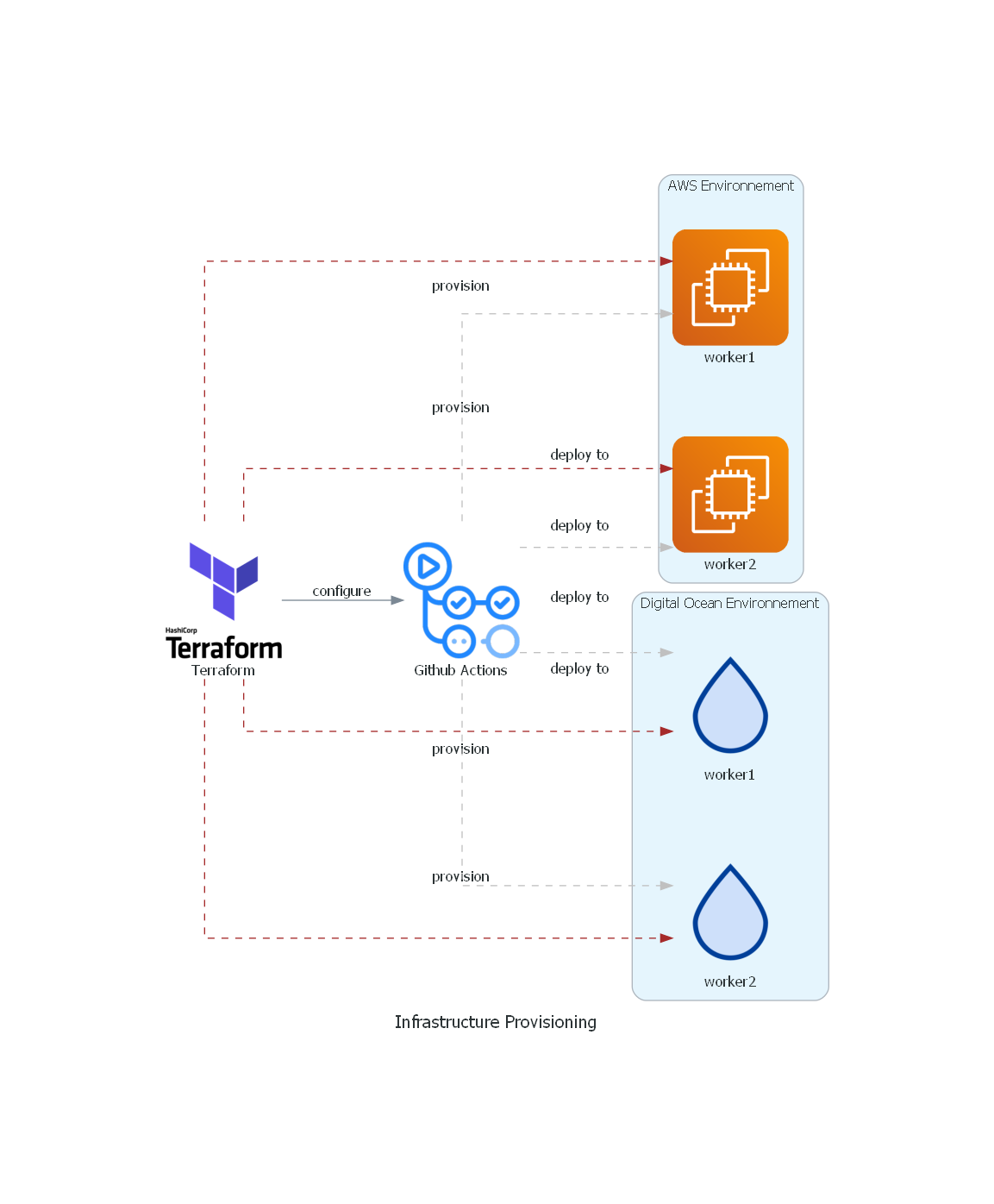 If you are using Terraform you may be provisioning your environment in a separate workflow or using Terraform Cloud as I do. The issue is that any environment always contains some variable or secrets that are only known once the Terraform configuration is applied. This could be the list of server IPs, the name of an SQS queue, the URL of a cloud service, etc.
Since we want to automate this as much as possible why not also configure the GitHub environment on the fly using Terraform? Lucky to use GitHub have a Terraform provider so in this article I will walk you through the step to set up your repository environment using Terraform.
If you are using Terraform you may be provisioning your environment in a separate workflow or using Terraform Cloud as I do. The issue is that any environment always contains some variable or secrets that are only known once the Terraform configuration is applied. This could be the list of server IPs, the name of an SQS queue, the URL of a cloud service, etc.
Since we want to automate this as much as possible why not also configure the GitHub environment on the fly using Terraform? Lucky to use GitHub have a Terraform provider so in this article I will walk you through the step to set up your repository environment using Terraform.
Authentication
The first step is to configure terraform GitHub provider and generate a personal access token so the Terraform can interact with GitHub APIs.
To create a new personal access token go to https://github.com/settings/tokens/new
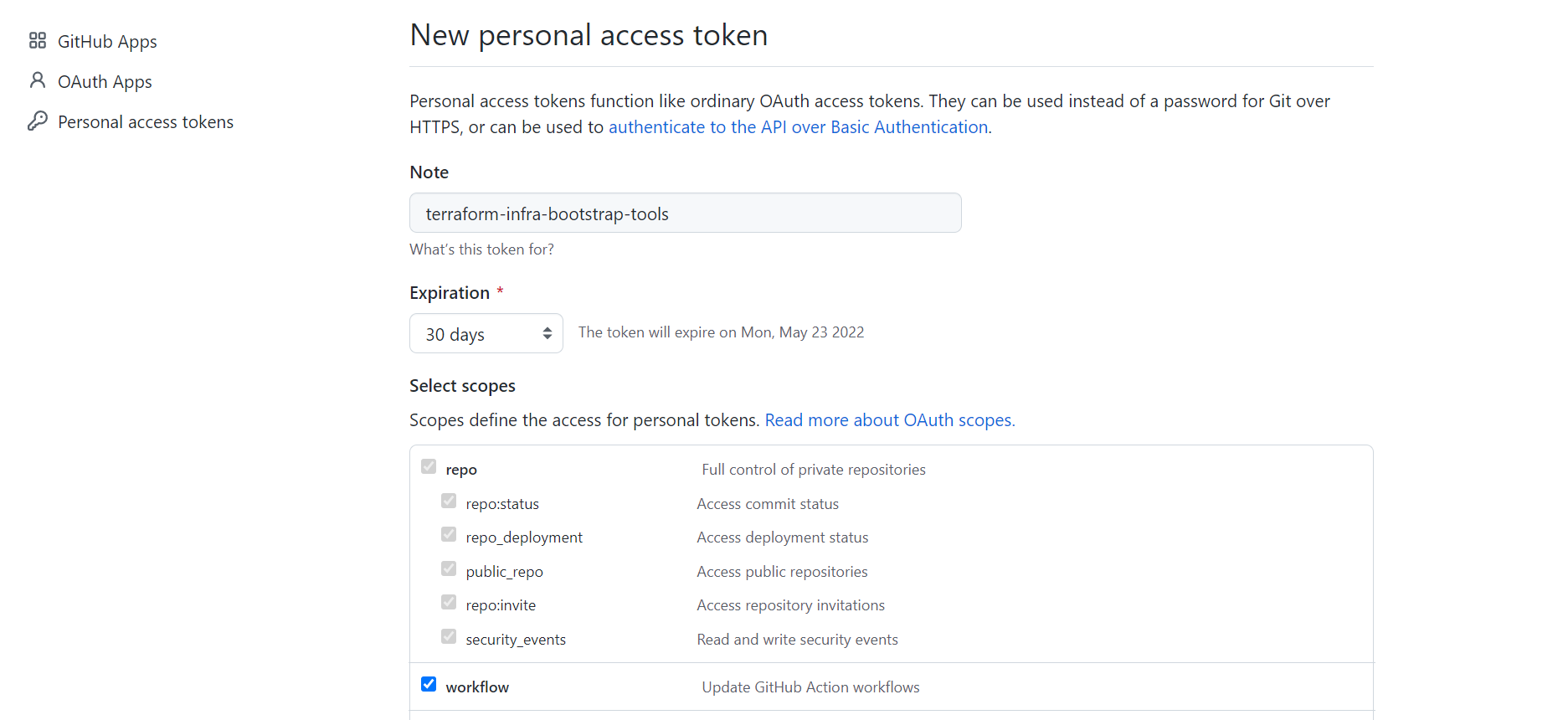
**Note: **the Personal Access token is fin for a simple test on your personal GitHub account but is limited in terms of security. The recommended option would be to create a GitHub App for this purpose. This is definitely something worth looking at in a future article.
Now you need to set the
GITHUB_TOKENenvironment variable in your terminal or add it up to the Terraform Cloud Environnement
export GITHUB_TOKEN=<your new token>
Using the GitHub Terraform Provider To Provisions Secrets
Create a Terraform configuration version.tf
terraform {
  required_providers {
    github = {
      source = "integrations/github"
      version = "4.23.0"
    }
  }
}

provider "github" {
  # use`GITHUB_TOKEN`
}
Create your Terraform configuration file dedicated to GitHub github.tf . In this file, we use data to get info about our repository. Then define two resources, the GitHub environment itself and a test secret to demonstrating how it works.
It is important to know that secret will be visible in the Terraform state file. This option may not be ideal for very sensitive secrets, however, this option is created to pass configs from Terraform to GitHub Action. Always make sure your state files are secure. In my case, I rely on Terraform Cloud, which is a great free option to manage securely your state files.
/**
 * # Github Repository
 *
 * The Terraform configuration needs to update Github Action Variable
 * This way we can manage secret and inventory automatically
 */

data "github_repository" "repo" {
  full_name = var.repo_name
}

resource "github_repository_environment" "digitalocean_environment" {
  repository       = data.github_repository.repo.name
  environment      = "digitalocean"
}

resource "github_actions_environment_secret" "test_secret" {
  repository       = data.github_repository.repo.name
  environment      = github_repository_environment.digitalocean_environment.environment
  secret_name      = "test_secret_name"
  encrypted_value  = "%s"
}
Last, create a variable definition file variable.tf that way this script will be easily reusable and could event become a module to keep your configuration DRY.
variable "repo_name" {
  type = string
  default = "xNok/infra-bootstrap-tools"
}
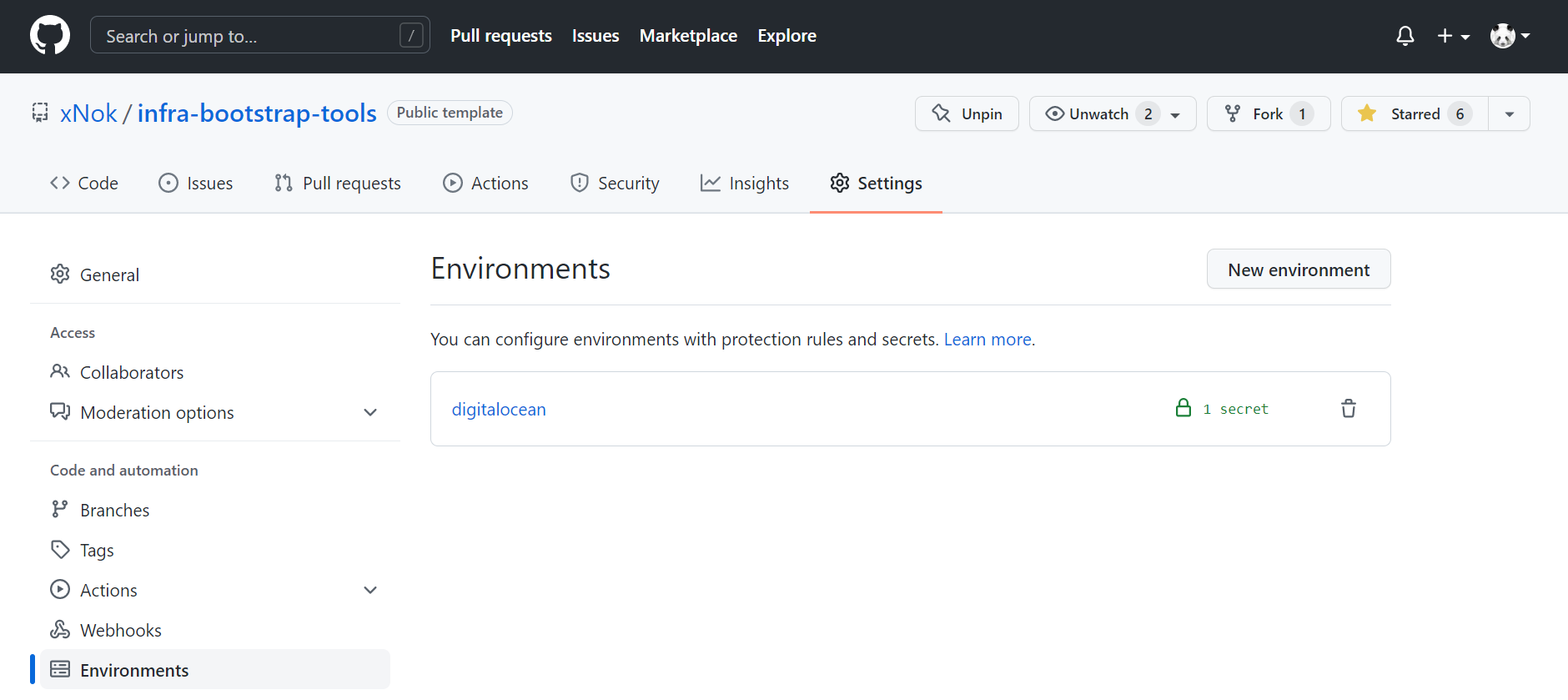
Finally, plan and apply your configuration and you should see your newly created environment in Settings > Environments with our test secret setup.
Using provisioned Secrets in a GitHub Action workflow
In a workflow definition, any job can use the property environment. Setting the environment property has two effects. The first is to allow the job to read the secrets of that environment. The second is to define this job as a deployment task and keep track of it in the deployment history.
In the below example I use the secret INVENTORY defined in the environment digitalocean . In this example, I generated my Ansible inventory with Terraform and can now use Ansible within my Github workflow.
run-playbook:
    # The type of runner that the job will run on
    runs-on: ubuntu-latest
    # The validated Job needs to be successful
    needs: [ validate ]
    # The deployment environment thus provides the secrets for that env
    environment: digitalocean

    steps:
      # Checks out your repository under $GITHUB_WORKSPACE, so your job can access it
      - uses: actions/checkout@v3

      - name: Set up Python 3.9
        uses: actions/setup-python@v2
        with:
          python-version: 3.9

      - name: Install dependencies Including Ansible
        run: |
          python -m pip install --upgrade pip
          if [ -f requirements.txt ]; then pip install -r requirements.txt; fi
          if [ -f test-requirements.txt ]; then pip install -r test-requirements.txt; fi

      - name: write inventory to file
        env:
          INVENTORY: ${{ secrets.INVENTORY }}
        run: 'echo "$INVENTORY" > inventory'
Using the GitHub Terraform Provider To Configure Permissions
The branch you use for deployment needs to implement some checks to make sure that you are not deploying something by mistake. GitHub has a lot of options to validate commits and pull-request and enforce that the selected workflow is respected by all contributors.
Configuring protection rules manually in every repository can be tedious. But you now manage part of the configuration with Terraform so let’s keep going and configure the protection rules.
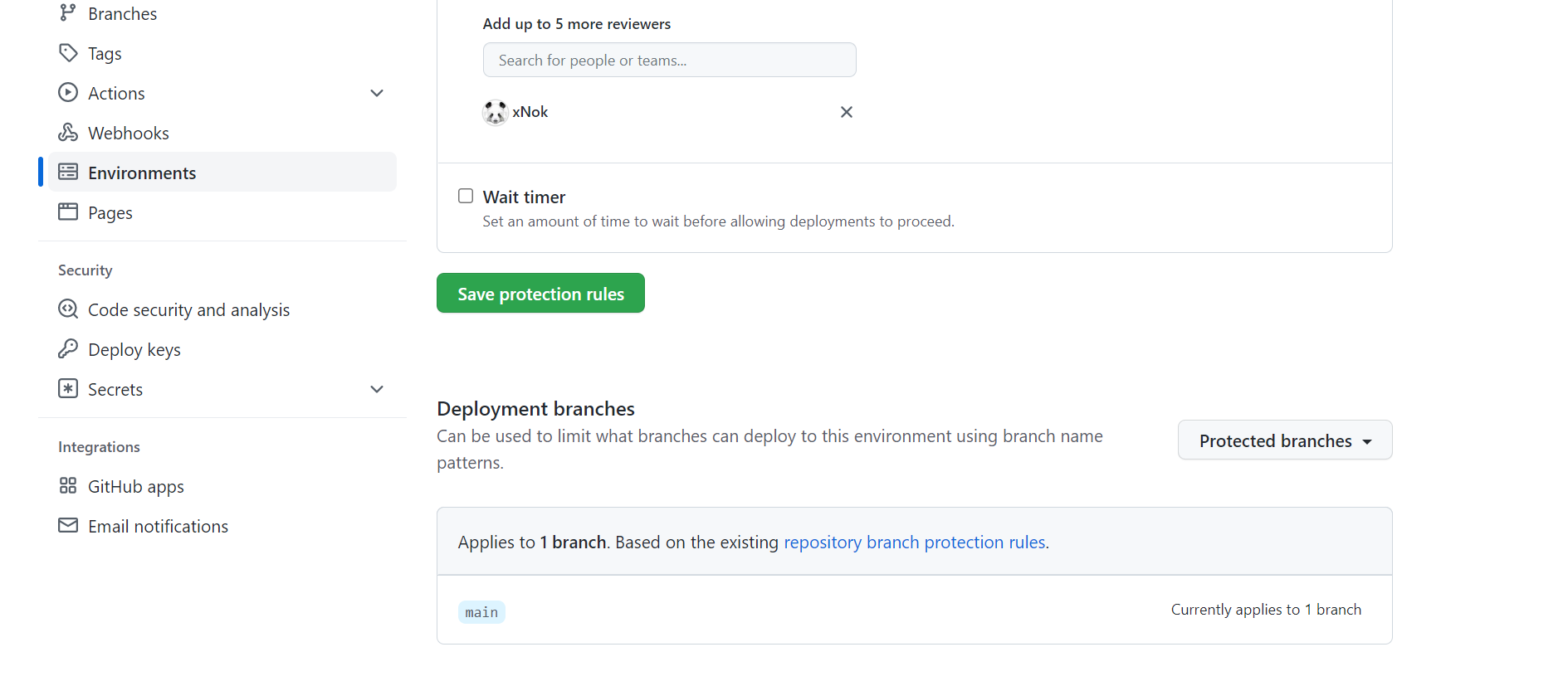
You can start by adding a deployment reviewer. This feature will pose the workflow until one of the reviewers approves the let deployment. I find this feature great for trunk base development where all the team can be notified of a new potential release to production and have the last chance to review changes before deployment.
In any case, this option is great to prevent mistakes and add a manual step to a workflow. This could be useful for a terraform workflow with a plan/apply workflow where you want a review of the plan before running the application.
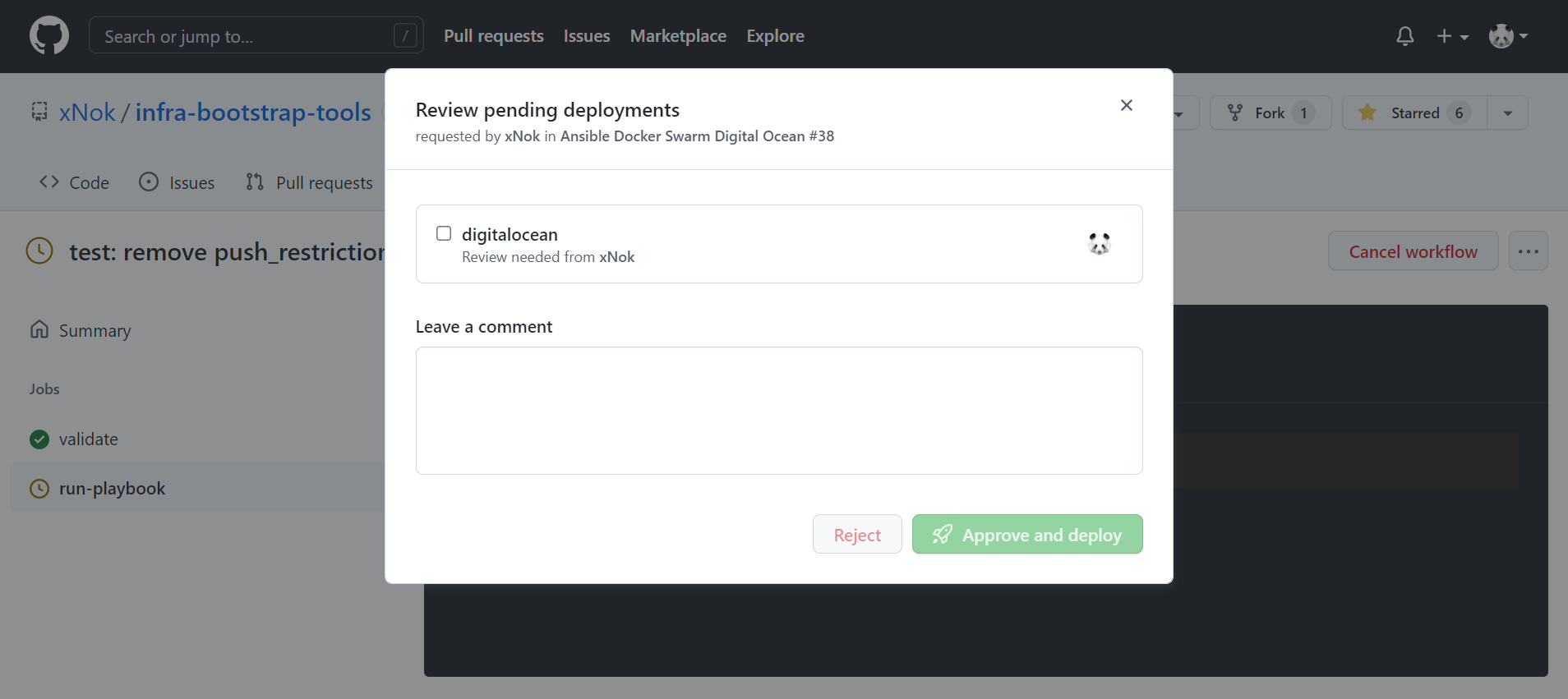 Regardless of your use case here is how you would configure deployment reviewers:
data "github_user" "deployement_approver" {
  username = var.deployement_approver
}

resource "github_repository_environment" "digitalocean_environment" {
  repository       = data.github_repository.repo.name
  environment      = "digitalocean"
  reviewers {
    users = [data.github_user.deployement_approver.id]
    # teams = [] an entire team can be approver
  }
}
Next, it would be best to make sure the branch used for deployment enforces best practices such as contributing via pull-request, being validated by workflow (linting, check, tests), preventing force push, etc. We can also configure this using GitHub Terraform provider
resource "github_repository_environment" "digitalocean_environment" {
  repository       = data.github_repository.repo.name
  environment      = "digitalocean"
  reviewers {
    users = [data.github_user.deployement_approver.id]
    # teams = [] an entire team can be approver
  }

  deployment_branch_policy {
    protected_branches     = true #the main branch protection definition is below
    custom_branch_policies = false
  }

}

/**
 * Github branch permissions
 *
 */

resource "github_branch_protection" "main" {
  repository_id     = data.github_repository.repo.node_id

  pattern          = "main"
  # enforce_admins   = true

  # Configure the check api
  required_status_checks {
    strict   = false
    contexts = ["validate"] #this is a github action I defined
  }
}
Based on the option you select you to need to add permissions to your GitHub token. In my case I needed to add **['read:org', 'read:discussion']****. **Most likely your first Terraform apply will fail and tell you what are the missing scope. I think this is the best option for the least privileged access with Terraform. ** It is also important to know that some options like **push_restrictions are only available for organizations so you may not be able to use them.
Deployment history
This option is granted as soon as you start using environments in your workflow. As you can see you get a full history of when was a deployment job run.
Conclusion
When using multiple tools you want to reduce the number of manual operations. Github Terraform provider lets you do just that. Since you are provisioning your environment using Terraform it makes the most sense to also configure your Github repository and Github Environnement using Terraform. That way you make sure that proper protections are in place and then require environment variables are automatically added and ready to use in GitHub action with manual interventions.
This article is part of a bigger project about using Terraform, Ansible, and Github for small self-hosted projects. An answering question along these lines:
🌍 How to configure GitHub Environments with Terraform?
🏭 How to provision VM on @digitalocean with #Terraform?
🔏 How to create SSH keys with Terraform?
🗺️ How to create #Ansible Inventory with Terraform?
👩🍳 How to run an Ansible playbook using GitHub Action?